Ei näy matot kartassa.Onko ne zonet helppo saada osumaan maton kanssa kohdalleen? Ainakin Neatossa tuo kuulostaisi aika painajaiselta yrittää satuttaa zone kohdalleen mattojen kanssa. Ainakaan Neatossa ei näy matot floorplanissa, jonka mukaan olisi helpompi tehdä säätöjä. Näkyykö Roborockin floorplanissa matot?

-
PikanavigaatioAjankohtaista io-tech.fi uutiset Uutisia lyhyesti Muu uutiskeskustelu io-tech.fi artikkelit io-techin Youtube-videot Palaute, tiedotukset ja arvonnat
Tietotekniikka Prosessorit, ylikellotus, emolevyt ja muistit Näytönohjaimet Tallennus Kotelot ja virtalähteet Jäähdytys Konepaketit Kannettavat tietokoneet Buildit, setupit, kotelomodifikaatiot & DIY Oheislaitteet ja muut PC-komponentit
Tekniikkakeskustelut Ongelmat Yleinen rautakeskustelu Älypuhelimet, tabletit, älykellot ja muu mobiili Viihde-elektroniikka, audio ja kamerat Elektroniikka, rakentelu ja muut DIY-projektit Internet, tietoliikenne ja tietoturva Käyttäjien omat tuotetestit
Softakeskustelut Pelit, PC-pelaaminen ja pelikonsolit Ohjelmointi, pelikehitys ja muu sovelluskehitys Yleinen ohjelmistokeskustelu Testiohjelmat ja -tulokset
Muut keskustelut Autot ja liikenne Urheilu TV- & nettisarjat, elokuvat ja musiikki Ruoka & juoma Koti ja asuminen Yleistä keskustelua Politiikka ja yhteiskunta Hyvät tarjoukset Tekniikkatarjoukset Pelitarjoukset Ruoka- ja taloustarviketarjoukset Muut tarjoukset
Kauppa-alue
Navigation
Install the app
How to install the app on iOS
Follow along with the video below to see how to install our site as a web app on your home screen.
Huomio: This feature may not be available in some browsers.
Lisää vaihtoehtoja
Tyylin valinta
You are using an out of date browser. It may not display this or other websites correctly.
You should upgrade or use an alternative browser.
You should upgrade or use an alternative browser.
Robotti-imurit
- Keskustelun aloittaja Eliasta Pani Karhu
- Aloitettu
-
- Avainsanat
- robotti-imuri robottipölynimuri
Tuosta kahden kerroksen jutusta vielä. Kyselin yhdeltä testaajalta asiaa. Tämä kuulemma toimii kaikilla neljällä Robocobilla (S4, S5, S5 Max, S6):
Tuolla on keskustelu ja viittasi kysymykseeni linkittämällä tuon noin kuukausi sitten antamansa vastauksen. Roborock S5 Max Review: Better Mopping Experience at a Reasonable Price
"1 month ago
The unit stores 3 maps. Map 1 is whatever map is currently active. Map 2 ("Manual backup") is saved any time a no-go zone or virtual wall is set. Map 3 ("Automatic backup") is saved any time it completes a full cycle and returns to the charging dock.
To answer your question, it depends on whether you created any no-go zones or invisible walls. If you didn't, then only Map 1 and Map 3 will be generated. Map 1 will be overwritten as soon as you start it on the second floor and it realizes it's in a new area, and Map 3 will be overwritten once it completes and docks. If you did set no-go zones, then your original floor will still be saved on Map 2. However, if you try to set no-go zones on your second story as well then it will overwrite the first floor map that was saved on Map 2.
I set it up for use with two floors using the following system. You can only set no-go zones on one floor, and you should keep the base station on the floor that is NOT that floor (alternatively, never run a full cycle on the no-go zone floor). If you do run a full cycle on your no-go zone floor, it will overwrite the Map 3 slot which you want to keep intact for your other floor.
1: Temporarily put the base station on the floor I wanted no-go zones on and then let it run and complete a full cycle.
2: Go to "Edit Map" you'll see that Maps 1, 2, and 3 will be the same map. Go back and create some no go zones. Then go back in to "Edit Map". You'll see your no-go zones on Map 2 and probably also 1.
3: Hit Delete on Map 1. Then take the Roborock and charging station to the other floor. Let it start and run a full cycle. It will map the whole floor and save it to Map 3 once complete. Now if you go to "Edit Map" you will see Map 2 as the first floor you ran it on and Map 3 as the second.
Now you can take it to the other floor and click "Use" on Map 2 before running the cycle. If you decide to move your charger back to that floor after running it on the second floor, do not run a full cycle. Otherwise, once it docks and "completes" the cycle it will overwrite Map 3.
I find it easier to keep the charger on the Map 3 floor so I don't have to worry about it. Any time you go to vacuum just make sure you press "Use" on either Map 2 or 3 so it is using the correct map for the floor you're vacuuming.
"
Tuolla on keskustelu ja viittasi kysymykseeni linkittämällä tuon noin kuukausi sitten antamansa vastauksen. Roborock S5 Max Review: Better Mopping Experience at a Reasonable Price
"1 month ago
The unit stores 3 maps. Map 1 is whatever map is currently active. Map 2 ("Manual backup") is saved any time a no-go zone or virtual wall is set. Map 3 ("Automatic backup") is saved any time it completes a full cycle and returns to the charging dock.
To answer your question, it depends on whether you created any no-go zones or invisible walls. If you didn't, then only Map 1 and Map 3 will be generated. Map 1 will be overwritten as soon as you start it on the second floor and it realizes it's in a new area, and Map 3 will be overwritten once it completes and docks. If you did set no-go zones, then your original floor will still be saved on Map 2. However, if you try to set no-go zones on your second story as well then it will overwrite the first floor map that was saved on Map 2.
I set it up for use with two floors using the following system. You can only set no-go zones on one floor, and you should keep the base station on the floor that is NOT that floor (alternatively, never run a full cycle on the no-go zone floor). If you do run a full cycle on your no-go zone floor, it will overwrite the Map 3 slot which you want to keep intact for your other floor.
1: Temporarily put the base station on the floor I wanted no-go zones on and then let it run and complete a full cycle.
2: Go to "Edit Map" you'll see that Maps 1, 2, and 3 will be the same map. Go back and create some no go zones. Then go back in to "Edit Map". You'll see your no-go zones on Map 2 and probably also 1.
3: Hit Delete on Map 1. Then take the Roborock and charging station to the other floor. Let it start and run a full cycle. It will map the whole floor and save it to Map 3 once complete. Now if you go to "Edit Map" you will see Map 2 as the first floor you ran it on and Map 3 as the second.
Now you can take it to the other floor and click "Use" on Map 2 before running the cycle. If you decide to move your charger back to that floor after running it on the second floor, do not run a full cycle. Otherwise, once it docks and "completes" the cycle it will overwrite Map 3.
I find it easier to keep the charger on the Map 3 floor so I don't have to worry about it. Any time you go to vacuum just make sure you press "Use" on either Map 2 or 3 so it is using the correct map for the floor you're vacuuming.
"

latee77
RTX ON
- Liittynyt
- 18.02.2017
- Viestejä
- 5 967
Tuosta kahden kerroksen jutusta vielä. Kyselin yhdeltä testaajalta asiaa. Tämä kuulemma toimii kaikilla neljällä Robocobilla (S4, S5, S5 Max, S6):
Tuolla on keskustelu ja viittasi kysymykseeni linkittämällä tuon noin kuukausi sitten antamansa vastauksen. Roborock S5 Max Review: Better Mopping Experience at a Reasonable Price
"1 month ago
The unit stores 3 maps. Map 1 is whatever map is currently active. Map 2 ("Manual backup") is saved any time a no-go zone or virtual wall is set. Map 3 ("Automatic backup") is saved any time it completes a full cycle and returns to the charging dock.
To answer your question, it depends on whether you created any no-go zones or invisible walls. If you didn't, then only Map 1 and Map 3 will be generated. Map 1 will be overwritten as soon as you start it on the second floor and it realizes it's in a new area, and Map 3 will be overwritten once it completes and docks. If you did set no-go zones, then your original floor will still be saved on Map 2. However, if you try to set no-go zones on your second story as well then it will overwrite the first floor map that was saved on Map 2.
I set it up for use with two floors using the following system. You can only set no-go zones on one floor, and you should keep the base station on the floor that is NOT that floor (alternatively, never run a full cycle on the no-go zone floor). If you do run a full cycle on your no-go zone floor, it will overwrite the Map 3 slot which you want to keep intact for your other floor.
1: Temporarily put the base station on the floor I wanted no-go zones on and then let it run and complete a full cycle.
2: Go to "Edit Map" you'll see that Maps 1, 2, and 3 will be the same map. Go back and create some no go zones. Then go back in to "Edit Map". You'll see your no-go zones on Map 2 and probably also 1.
3: Hit Delete on Map 1. Then take the Roborock and charging station to the other floor. Let it start and run a full cycle. It will map the whole floor and save it to Map 3 once complete. Now if you go to "Edit Map" you will see Map 2 as the first floor you ran it on and Map 3 as the second.
Now you can take it to the other floor and click "Use" on Map 2 before running the cycle. If you decide to move your charger back to that floor after running it on the second floor, do not run a full cycle. Otherwise, once it docks and "completes" the cycle it will overwrite Map 3.
I find it easier to keep the charger on the Map 3 floor so I don't have to worry about it. Any time you go to vacuum just make sure you press "Use" on either Map 2 or 3 so it is using the correct map for the floor you're vacuuming.
"
Vaikuttaa helpommalta jos vaan käyttää välillä 2. kerroksessa "back up mappia". Eli mitään oikeaa kerrostamista ei oikein ole vaan erilaisilla kikkailuilla onnistuu. Hyvä kun kyselit

Mitähän tuo sitte tekee jos olisi telakat molemmissa kerroksissa


- Liittynyt
- 12.12.2016
- Viestejä
- 207
Oon itse aatellu, että jos on kaksi kerrosta ja siellä esim. muksujen huoneet, niin laittaisi vaan suosiolla oman robon sinne. Joo kirpaisee ostaessa enempi, mutta helppous ja ajastusten toimivuus yms houkuttelisi. Samoin että saisivat itse ajella tarvittaessa manuaalisesti ja vastata binin tyhjäyksestä.
Säästoä voisi etsiä löytämällä käytetyn tai sit odottamalla kunnon alennusmyyntejä.
Säästoä voisi etsiä löytämällä käytetyn tai sit odottamalla kunnon alennusmyyntejä.

- Liittynyt
- 30.10.2016
- Viestejä
- 2 416
2,5v vanha Samsungin pilipalirobotti on ruvennut tekemään huonoa jälkeä ja NiMH-akkukaan ei kestä kuin 25min kerrallaan, olisikohan tämä oivallinen laite ja hyvä tarjoushinta:
Ilmeisesti S5/S50/S55 on kaikki samaa mallia? Kuinka nää Roborockit tykkää koirankarvasta?
Ilmeisesti S5/S50/S55 on kaikki samaa mallia? Kuinka nää Roborockit tykkää koirankarvasta?
- Liittynyt
- 12.12.2016
- Viestejä
- 207
S50 valkoinen ja S55 musta. Näin oma käsitys. Joku jossain sanoi, että Robon harja on muita parempi juurikin eläinten karvan kanssa. Mutta kokemusta vain lyhytkarvaisesta koirasta ja ei ole vielä ollut kunnon karvanlähtöäkään tässä välissä.2,5v vanha Samsungin pilipalirobotti on ruvennut tekemään huonoa jälkeä ja NiMH-akkukaan ei kestä kuin 25min kerrallaan, olisikohan tämä oivallinen laite ja hyvä tarjoushinta:
Ilmeisesti S5/S50/S55 on kaikki samaa mallia? Kuinka nää Roborockit tykkää koirankarvasta?

- Liittynyt
- 17.10.2016
- Viestejä
- 1 358
En ole itsekään löytänyt mitään 2-kerroksen
mainintaa mistään asetuksista, jos imuroin yläkerran niin vien vekottimen sinne ja back up kartta päälle. Tosin en ole kokeillut siirtää telakkaa ylös. Johto jemmattu sen verran syvälle ettei huvita alkaa purkamaan ja roudaamaan palikoita, pitäis varmaan ostaa S6 kaveriksi jokin halvempi malli yläkertaan mutta vähän turhaa rahanmenoa sekin.
Roomba i7+ ja s9+ mainostaa tukea useammalle kerrokselle. Onko kenelläkään niistä kokemuksia?
Nyt olis S5 Max haettavissa Gigantista. Tänään/huomenna lähden (korona tiukasti mielesä). Saapas näkee, millainen juttu tästä tulee.
EDIT: onko S% Maxilla oma sovellus vai kaikilla Robocobeila sama? Ja oiko niitä eri tekijöiltä myös? Kokemuksia?
Tämäkö?

Ainakin tästä murskaavia arvosteluja tältä vuodelta.

EDIT: onko S% Maxilla oma sovellus vai kaikilla Robocobeila sama? Ja oiko niitä eri tekijöiltä myös? Kokemuksia?
Tämäkö?
Ainakin tästä murskaavia arvosteluja tältä vuodelta.
Viimeksi muokattu:

- Liittynyt
- 21.11.2016
- Viestejä
- 337
Mites näiden imurien akkujen kanssa? Itse huomannut, että välillä tulee jaksoja kun imuri on pitempään telakassa valmiudessa ja tällöin telakka pitää imurin käytännössä koko ajan 100% akkuvarauksella. Onko miten paljon hyötyä laittaa väliin vaikka joku etähallittava töpseli, jolla saisi akun varauksen välillä tipahtamaan pitemmälle kuin nykyisen 98%-100% sahailua?
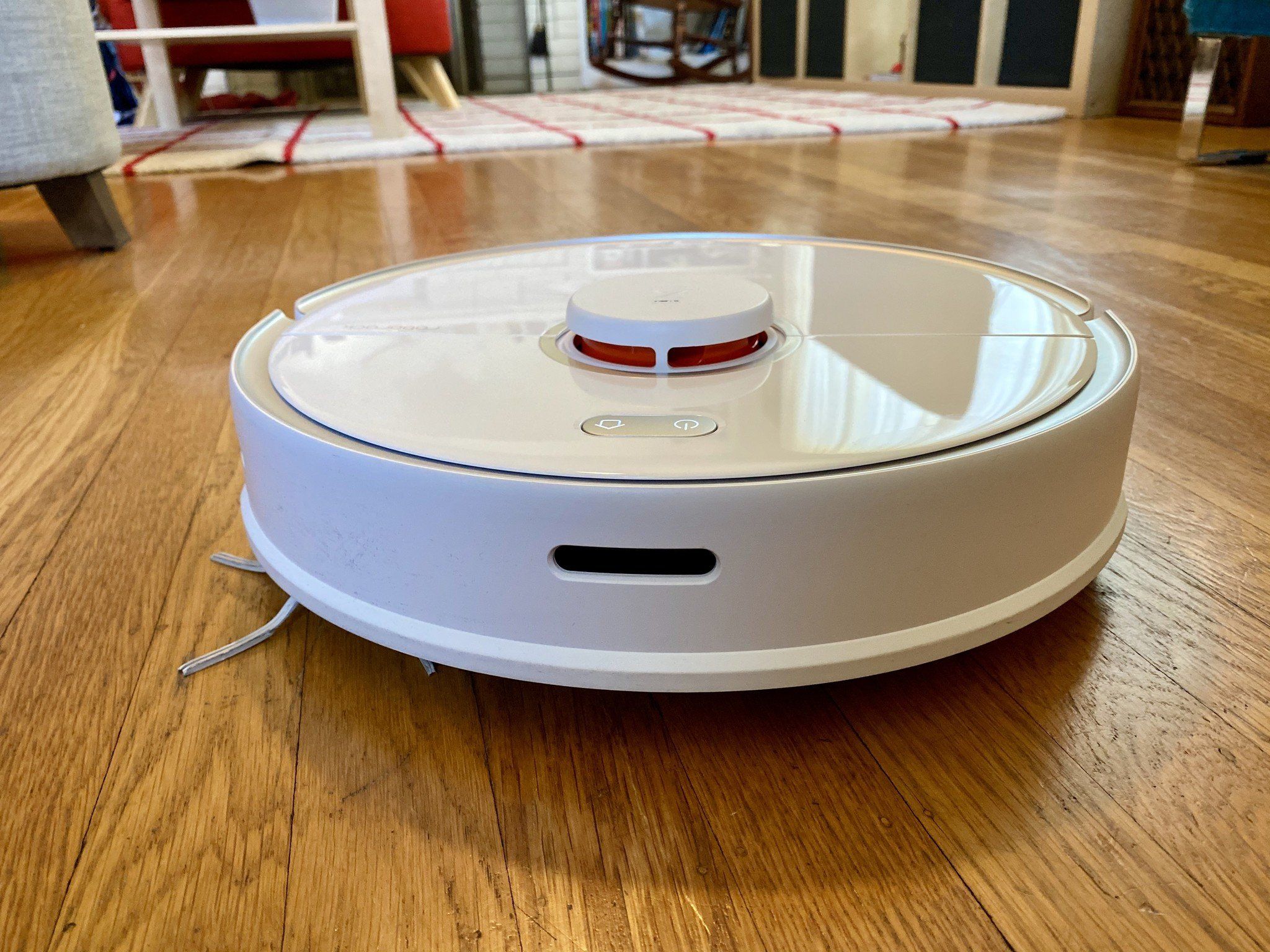
Roborockin sivuilla viitataan tähän appiin (juuri se, jota porukka haukkuu viimeisimmissä arvioissa):

 www.imore.com
"When you do dig into the Mi Home app, you can set up customizations for every room in the house. This app is far from perfect, but with patience and some investigating, you can do some pretty incredible things, which is what makes the S5 Max stand out in this crowded space."
Tämä asennettuna. Kohta robo kehiin, kun olen sen noutanut.
Roborock S5 Max review: My life is definitely better with Robbie in it
After to many failed attempts at using a robot vacuum, I'd just about given up ... until I met the Roborock S5 Max.
www.imore.com
"When you do dig into the Mi Home app, you can set up customizations for every room in the house. This app is far from perfect, but with patience and some investigating, you can do some pretty incredible things, which is what makes the S5 Max stand out in this crowded space."
Tämä asennettuna. Kohta robo kehiin, kun olen sen noutanut.
Viimeksi muokattu:
Itelle tuli s5 max eilen. pikaiset kokemukset vehkeestä:
- yks matto vaihtoon, liian kevyttä kamaa niin robo ruttas mattoa ja jäi jumiin.
- eka siivous veteli kuinka sattu, 80min niin oli saanu kartotettua koko talon. kaks säiliötä tuli sontaa ekasta ajosta (2 koiraa ja 1 kissa)
- toinen siivous ajastettuna töihin lähdön jälkeen, seurasin appilla töistä ku lähti sutkuttaan, siivos tosi järjestelmällisesti ja hyvin, oli rajattuna 3 huonetta pois. valmis 40min.
Mikä kännyn appi sulla?Itelle tuli s5 max eilen. pikaiset kokemukset vehkeestä:
näin ensipuraisu robotti-imureihin niin tää oli ihan nappiostos.
- yks matto vaihtoon, liian kevyttä kamaa niin robo ruttas mattoa ja jäi jumiin.
- eka siivous veteli kuinka sattu, 80min niin oli saanu kartotettua koko talon. kaks säiliötä tuli sontaa ekasta ajosta (2 koiraa ja 1 kissa)
Laitan kohta lataukseen ja sitten menoksi. Ja Mi Homella mennään.Arvosteluja odotellessa siis tuosta maxista! Itsellä myös vahvassa harkinnassa mutta en vielä ole uskaltanut mennä kauppaan asti
EDIT: kestää. 80% nyt.

Viimeksi muokattu:
Pelkkä roborock sovellus. Ei oo muuta xiaomi rojua nii ei ollu tarvetta mihomelleMikä kännyn appi sulla?
Nyt kävi läpi kolme huonetta. Päätyi 50% lataustilanteeseen ja lähti latautumaan. Aikas hienosti kävi paikkoja läpi. Kynnyksillä joutui hiukan pakittelemaan, että pääsi yli.

Kuvan epämääräiset kohdat (tiimalasin näköinen) johtuu kaapista ja hellasta. Eri huoneissa, mutta jotenkin yhdisti ne.
Kuvan epämääräiset kohdat (tiimalasin näköinen) johtuu kaapista ja hellasta. Eri huoneissa, mutta jotenkin yhdisti ne.
Viimeksi muokattu:
Pikainen kysymys. Mitenkäs ne huoneet saa "merkattua"? Annoin nimiä, mutta en löydä kohtaa, jossa voisi osoittaa huoneita ja nimetä. Entä miten kartta saadaan talteen? Laitoin spotti-imuroimaan, niin mitään karttaa ei ollut enää olemassa.
EDIT: Settings -Vacuum Settings- Map saved mode (Beta) pitää ruksata. Auts.
Samassa paikassa on myös "Do Not Disturbe mode". Siitä voi laittaa kellonajat, jolloin ei imuroida, jos ei muuten käsketä.
Kohdassa Maintenance näkyy jäljellä oleva aika eri varaosille. Tämä aika, joka näkyy, on 1,5 h uurastuksen jälkeen. Mattojen nurkkia kannattanee hieman teipata lattiaan, koska ruttailee niitä. Tosin, jos ei jää kiinni, niin jättää kohdan väliin, kun matto peittää näkökenttänsä.
"Pin n Go" -kohdasta voi määritellä paikan, johon pitää mennä- Jos karttaa ei ole tallennettu, joutuu sitä paikkaa vaihtelemaan pätkittäin, että löytää oikean kohdan. Näin jouduin itse tekemään.

EDIT: Settings -Vacuum Settings- Map saved mode (Beta) pitää ruksata. Auts.
Samassa paikassa on myös "Do Not Disturbe mode". Siitä voi laittaa kellonajat, jolloin ei imuroida, jos ei muuten käsketä.
Kohdassa Maintenance näkyy jäljellä oleva aika eri varaosille. Tämä aika, joka näkyy, on 1,5 h uurastuksen jälkeen. Mattojen nurkkia kannattanee hieman teipata lattiaan, koska ruttailee niitä. Tosin, jos ei jää kiinni, niin jättää kohdan väliin, kun matto peittää näkökenttänsä.
"Pin n Go" -kohdasta voi määritellä paikan, johon pitää mennä- Jos karttaa ei ole tallennettu, joutuu sitä paikkaa vaihtelemaan pätkittäin, että löytää oikean kohdan. Näin jouduin itse tekemään.
Viimeksi muokattu:
Miten määrittelette huoneet Roborockille (kysyin jo edellisessä viestissä)? Olen kirjannut huoneiden nimiä, mutta niitä ei saa linkitettyä kyseisiin huoneisiin. Location management vain näyttää, mitä huoneiden nimiä olen lisännyt ja mikä on ns. pääasiallinen huone.
Kommentti toiminnasta: Uskomattoman hyvin ylitti hapsuisia mattoja. Rullasi osaa niistä hiukan ja kadotti osan huonenäkymästä, niin pakitti ja selvisi tilanteesta. Ja kaikkialle 2 cm kynnykset meni aikas hyvin. Joutui välillä kääntymään sivuttain.

Se etupuskuri on kyllä huikean hieno juttu. Koskettaa vain hiukan estettä. Meillä jäi jumiin portaikon pienen tasanteen päälle hiukan, kun huomasi, että lisäksi löytyy pudotus (cliff sensor).
EDIT2: Perusnäytössä (kun huoneet kartalla) klikkaat vasemmalla melko alhaalla olevaa kuvaketta, niin mennään huoneiden järjestämiseen ja nimeämisiin. Siellä on myös no-go zonet yms.


Kommentti toiminnasta: Uskomattoman hyvin ylitti hapsuisia mattoja. Rullasi osaa niistä hiukan ja kadotti osan huonenäkymästä, niin pakitti ja selvisi tilanteesta. Ja kaikkialle 2 cm kynnykset meni aikas hyvin. Joutui välillä kääntymään sivuttain.
Se etupuskuri on kyllä huikean hieno juttu. Koskettaa vain hiukan estettä. Meillä jäi jumiin portaikon pienen tasanteen päälle hiukan, kun huomasi, että lisäksi löytyy pudotus (cliff sensor).
EDIT2: Perusnäytössä (kun huoneet kartalla) klikkaat vasemmalla melko alhaalla olevaa kuvaketta, niin mennään huoneiden järjestämiseen ja nimeämisiin. Siellä on myös no-go zonet yms.
Viimeksi muokattu:
- Liittynyt
- 12.12.2016
- Viestejä
- 207
Postista tuli viime viikolla kauan sitten tilaamani Gearbestin varaosapaketti. Tässä välissä ehdin jo tilaamaan tsekeistä AliExpressin kautta tsekeistä virallista kamaa ja oletin että tää pussukka irtokamaa on lopulta ihan huuhaata.
Mutta ihan laadukkailta vaikuttaa nuo Gearbestiltäkin tulleet. Sanotaan, että aika lahjakas lapsi pitää olla siellä piraattipajallakin ompelemassa, jos noin hyvää saumaa ompelee mopin liinaan. En nyt ehtinyt vertailla kaikkia osia, mutta heti ei silmä huomannut eroja.
Mutta ihan laadukkailta vaikuttaa nuo Gearbestiltäkin tulleet. Sanotaan, että aika lahjakas lapsi pitää olla siellä piraattipajallakin ompelemassa, jos noin hyvää saumaa ompelee mopin liinaan. En nyt ehtinyt vertailla kaikkia osia, mutta heti ei silmä huomannut eroja.

- Liittynyt
- 16.10.2016
- Viestejä
- 1 792
jääkö näissä moppaavissa roborockeissa moppiosa telakassa paljaan lattian päälle, vai nouseeko koko imuri jonkin alustan päälle?
Mietin, että ei varmaan tee hyvää parketille/laminaatille jos toistuvasti jää märkä moppi siihen telakan eteen lattiaa vasten...
te, joilla nämä on ollut käytössä jo pitempään, oletteko huomanneet ongelmaa tässä?
Mietin, että ei varmaan tee hyvää parketille/laminaatille jos toistuvasti jää märkä moppi siihen telakan eteen lattiaa vasten...
te, joilla nämä on ollut käytössä jo pitempään, oletteko huomanneet ongelmaa tässä?
Telakan alle tulee sellainen isohko muovinen lämyskä.jääkö näissä moppaavissa roborockeissa moppiosa telakassa paljaan lattian päälle, vai nouseeko koko imuri jonkin alustan päälle?
Mietin, että ei varmaan tee hyvää parketille/laminaatille jos toistuvasti jää märkä moppi siihen telakan eteen lattiaa vasten...
te, joilla nämä on ollut käytössä jo pitempään, oletteko huomanneet ongelmaa tässä?
Ties vaikka valmistettaisi samassa paikassa Kiinassa, kuin "alkuperäiset". Mikä laite sulla olikaan? Mietin itse, että laitan varuiksi tilaukseen joitan juttuja (moppeja, suodattimia, harja ja sivuharja), jos vaikka joku sattuu hajoamaan, kun osuu väärään paikkaan.Postista tuli viime viikolla kauan sitten tilaamani Gearbestin varaosapaketti. Tässä välissä ehdin jo tilaamaan tsekeistä AliExpressin kautta tsekeistä virallista kamaa ja oletin että tää pussukka irtokamaa on lopulta ihan huuhaata.
Mutta ihan laadukkailta vaikuttaa nuo Gearbestiltäkin tulleet. Sanotaan, että aika lahjakas lapsi pitää olla siellä piraattipajallakin ompelemassa, jos noin hyvää saumaa ompelee mopin liinaan. En nyt ehtinyt vertailla kaikkia osia, mutta heti ei silmä huomannut eroja.
Saitko haettua @puppelitupuna tuolta Gearbestistä sellaisia yhdistelmäosia (jossa moppia, harjaa,...)? Itse en löytänyt sieltä oikein mitään. Tiedä sitten, jos ovat S6:n nimkkeen alla.
Jostakin näistä:

US $18.57 35% OFF|Robot Vacuum Cleaner Filter Silicone Side Brush Removable Main Brush Accessory kit For Xiaomi roborock S4 S5 S5 MAX Robot Parts|Vacuum Cleaners| | - AliExpress
Smarter Shopping, Better Living! Aliexpress.com
 www.aliexpress.com
Täältä taitaa kestää tuhottoman kauan tulla:

Roller Brush Kit Replace For Xiaomi Roborock S6 S5 Max S60 S65 Vacuum Parts | eBay
Find many great new & used options and get the best deals for Roller Brush Kit Replace For Xiaomi Roborock S6 S5 Max S60 S65 Vacuum Parts at the best online prices at eBay! Free shipping for many products!
www.ebay.com
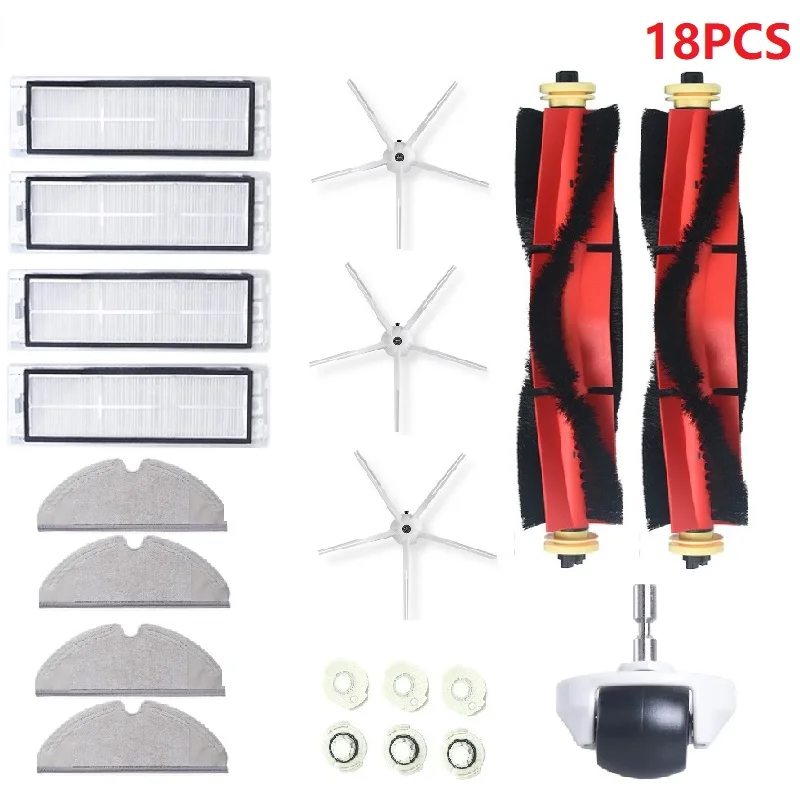
Main brush HEPA filter for Xiaomi Roborock S6 S60 S65 S5 T6 Tanos Mopping Cloth Spare Parts - AliExpress 6
Smarter Shopping, Better Living! Aliexpress.com
www.aliexpress.com
Eniten mua hämää se, ettei millään pysty tietämään, sopiiko tietyt osat vai ei."Näyttäisi" siltä, että S5:n ja S6:n mopit/suodattimet/harjat kävisivät myös S5 Maxiin, mutta... Ja toinen hämäävä juttu on se, ettei niitä 5-sakaraisia näytä olevan joka paikassa tarjolla, vaan tuupataan 3-sakaraista. En ollenkaan usko, että on yhtä hyvä. Just kun on löytänyt mielestään hyvän paketin, siinä onkin 3-sakaraisia sivuharjoja. Eikä kaikissa ole moppeja ollenkaan.


Tai sitten, kun löytää paketin UK:sta, se postitetaankin Kiinasta (eikö CN ole = Kiina?). Mulla on pari pakettia ollut matkalla Kiinasta (muita juttuja) jo yli 2 kk.
Replacement Kit For Xiaomi Roborock S6 S60 S65 S5 MAX T6 Vacuum Cleaner, Include 2 Roller Brush, 3 Side Brush, 4 Hepa Filter, 2 Original Mop Cloth, 1 Cleaning brush, 1 Screwdriver: Amazon.co.uk: Kitchen & Home
Free delivery and returns on eligible orders. Buy Replacement Kit For Xiaomi Roborock S6 S60 S65 S5 MAX T6 Vacuum Cleaner, Include 2 Roller Brush, 3 Side Brush, 4 Hepa Filter, 2 Original Mop Cloth, 1 Cleaning brush, 1 Screwdriver at Amazon UK.
www.amazon.co.uk
Myyjän firman lyhennys on hyvin keksitty. Muistuttaa EU:ta. CCEU. Ja suurin osa noista paketeista on juuri tuolta CCEU:lta, joita Amazon.co.uk:sta löysin.
Viimeksi muokattu:
Koska itselläni oli ennen ostoa epäselvää, miten se moppi oikein "toimii", niin tässä pari kuvaa siitä ja sen alustasta. Moppi asetetaan liu'uttamalla koloonsa (S5 Max) ja laitetaan tarroilla kiinni (tarrat ovat nuo valkeat tuossa alustassa). Tarkennuksena vielä: varsinainen vesisäiliö on erikseen. Kun ei mopata, niin moppi pitää ottaa pois sieltä koneen alta.
Jos jotakuta risoo nämä postaukset, niin voi ohittaa. Itselleni ainakin olisivat olleet hyvää asiaa näissä robotti-imurijutuissa tietää, mitä sieltä paketeista löytyy ja miten niitä laitetaan paikoilleen. Klikkaamalla kuvaa, saa suuremmaksi.


Vesisäiliö edestä ja päältä.


Jos jotakuta risoo nämä postaukset, niin voi ohittaa. Itselleni ainakin olisivat olleet hyvää asiaa näissä robotti-imurijutuissa tietää, mitä sieltä paketeista löytyy ja miten niitä laitetaan paikoilleen. Klikkaamalla kuvaa, saa suuremmaksi.
Vesisäiliö edestä ja päältä.
Viimeksi muokattu:
- Liittynyt
- 30.10.2016
- Viestejä
- 2 416
Tilailin S5:n pitkän harkinnan jälkeen AliExpressin ~300€ tarjouksesta, ja jännä nähdä millainen epeli tuo on verrattuna aiempaan Samsungin robottiin. Ainakin tuo täysin pyöreä ulkomuoto ja sivuharja ovat jo sellaisenaan isoja parannuksia, samoin tuo kartan piirto sovelluksessa. Akun kesto oli aivan luokaton jo alusta alkaen, noin 40min ja nyt parin vuoden jälkeen enää 25min, toki meillä on pieni asunto joten se ei ole ollut iso ongelma.
Osaako joku sanoa, miten imuri mahtaa käyttäytyä kun meillä on yleisesti ovet kiinni ja parissa ovessa lisäksi koiraportti, josta tuskin yli pääsee? Meneekö kartta aina uusiksi, jos robotin siirtää nostamalla eristyksessä olevaan huoneeseen? Vai pitäisikö aivan aluksi antaa imurin kartoittaa aivan koko kämppä, ja sitten asentaa portit takaisin? Vapaa tila on siis käytännössä keittiö, ruokailutila, iso olohuone sekä eteinen + käytävä, ehkä jotain 50-60 neliötä, ja tuota ei vanha imuri enää jaksa yhdellä latauksella edes puhdistaa.
Osaako joku sanoa, miten imuri mahtaa käyttäytyä kun meillä on yleisesti ovet kiinni ja parissa ovessa lisäksi koiraportti, josta tuskin yli pääsee? Meneekö kartta aina uusiksi, jos robotin siirtää nostamalla eristyksessä olevaan huoneeseen? Vai pitäisikö aivan aluksi antaa imurin kartoittaa aivan koko kämppä, ja sitten asentaa portit takaisin? Vapaa tila on siis käytännössä keittiö, ruokailutila, iso olohuone sekä eteinen + käytävä, ehkä jotain 50-60 neliötä, ja tuota ei vanha imuri enää jaksa yhdellä latauksella edes puhdistaa.
Suosittelen antamaan käydä koko huoneiston ensin läpi. Muista asettaa se kartantallennus päälle (tuolla edellä kerroin miten), muuten unohtaa kartan. Ja kun nostat ylös tai laitat Pause, kartta menee heti uusiksi ainakin Mi Home -sovelluksella.Tilailin S5:n pitkän harkinnan jälkeen AliExpressin ~300€ tarjouksesta, ja jännä nähdä millainen epeli tuo on verrattuna aiempaan Samsungin robottiin. Ainakin tuo täysin pyöreä ulkomuoto ja sivuharja ovat jo sellaisenaan isoja parannuksia, samoin tuo kartan piirto sovelluksessa. Akun kesto oli aivan luokaton jo alusta alkaen, noin 40min ja nyt parin vuoden jälkeen enää 25min, toki meillä on pieni asunto joten se ei ole ollut iso ongelma.
Osaako joku sanoa, miten imuri mahtaa käyttäytyä kun meillä on yleisesti ovet kiinni ja parissa ovessa lisäksi koiraportti, josta tuskin yli pääsee? Meneekö kartta aina uusiksi, jos robotin siirtää nostamalla eristyksessä olevaan huoneeseen? Vai pitäisikö aivan aluksi antaa imurin kartoittaa aivan koko kämppä, ja sitten asentaa portit takaisin? Vapaa tila on siis käytännössä keittiö, ruokailutila, iso olohuone sekä eteinen + käytävä, ehkä jotain 50-60 neliötä, ja tuota ei vanha imuri enää jaksa yhdellä latauksella edes puhdistaa.
- Liittynyt
- 09.12.2019
- Viestejä
- 78
Suosittelen antamaan käydä koko huoneiston ensin läpi. Muista asettaa se kartantallennus päälle (tuolla edellä kerroin miten), muuten unohtaa kartan. Ja kun nostat ylös tai laitat Pause, kartta menee heti uusiksi ainakin Mi Home -sovelluksella.
Ei mene koko kartta uusiksi. Tuulikaapin imuroin juurikin koko kierroksen jälkeen, nostamalla sen sinne pörräämään

- Liittynyt
- 26.03.2020
- Viestejä
- 118
Tuli kans ostettua S5 Max aliexpressistä. Sai alennusmyynnistä niin hyvään hintaan ettei voinut vastustaa.
Huomenna pitäisi olla perillä. Kai tässä pitäisi jo valmistautua kaverin saapumiseen ja vähän siistiä jotain alueita, niin että sen on helpompi kulkea.
Mitähän noille kotiteatterin ja videotykin kaapeleille tekisi, ne ovat vain irrallaan tuolla seinänvierustalla. Voikohan imuri sotkeentua niihin.
Huomenna pitäisi olla perillä. Kai tässä pitäisi jo valmistautua kaverin saapumiseen ja vähän siistiä jotain alueita, niin että sen on helpompi kulkea.
Mitähän noille kotiteatterin ja videotykin kaapeleille tekisi, ne ovat vain irrallaan tuolla seinänvierustalla. Voikohan imuri sotkeentua niihin.
latee77
RTX ON
- Liittynyt
- 18.02.2017
- Viestejä
- 5 967
Tuli kans ostettua S5 Max aliexpressistä. Sai alennusmyynnistä niin hyvään hintaan ettei voinut vastustaa.
Huomenna pitäisi olla perillä. Kai tässä pitäisi jo valmistautua kaverin saapumiseen ja vähän siistiä jotain alueita, niin että sen on helpompi kulkea.
Mitähän noille kotiteatterin ja videotykin kaapeleille tekisi, ne ovat vain irrallaan tuolla seinänvierustalla. Voikohan imuri sotkeentua niihin.
Laita kaikki lattia johdot johtokouruun seinälle listan päälle. Vähän jumppaa, mutta helpottaa kummasti ja tulee siistimmän näköinenkin.

- Liittynyt
- 31.01.2017
- Viestejä
- 1 216
- Liittynyt
- 12.12.2016
- Viestejä
- 207
Jos jotakuta risoo nämä postaukset, niin voi ohittaa. Itselleni ainakin olisivat olleet hyvää asiaa näissä robotti-imurijutuissa tietää, mitä sieltä paketeista löytyy ja miten niitä laitetaan paikoilleen. Klikkaamalla kuvaa, saa suuremmaksi.
Ei kun just hyvä että joku näitä laittaa.
Itsehän hommasin S5:n halvalla 4kk käytettynä selkeästi pettyneeltä ostajalta. Ja sit ajelin pari eka kertaa edellisen omistajan laitteeseen jättämä kuiva moppi perässä ihmetellen, että kuinka paskoja nää laitteet oikeasti on, kun joka nousussa jää kauheat jätökset.
Sitten alkoi itsellä raksuttaa, kun sain tehtyä harjaksen putsauksen ja ajeltua laitetta ilman moppia, että täähän alkaa toimia. Sit kun ohjeista löytyi vielä se mopin oikeaoppinen käyttö, niin tapahtui jotain mitä naisystäväkin ihmetteli: pari vuotta vanha vinyylikorkkilattia ei ole ikinä näyttänyt näin hyvältä.
- Liittynyt
- 26.03.2020
- Viestejä
- 118
Laita kaikki lattia johdot johtokouruun seinälle listan päälle. Vähän jumppaa, mutta helpottaa kummasti ja tulee siistimmän näköinenkin.
Täytyy kehitellä jotain tällaista jos tuo muodostuu ongelmaksi.
Jäikö miten paljon alle 400€ ?
Hieman alle 370€ jäi hintaa kuponkien kanssa.
Nyt kun oikein ajatuksen kanssa katselin, niin yllättävän paljon täällä asunnossa on sellaisia ahtaita välejä joihin tuo imuri ei tule pääsemään. Osan voin uudelleen järjestelyllä poistaa, mutta en kaikkia.
Mielenkiintoista myös nähdä miten se tulee pärjäämään minun yli puolimetristen hiusten kanssa

- Liittynyt
- 12.12.2016
- Viestejä
- 207
Täällä kokemusta yli metrin hiuksista ja sen sivuharjan irroitukseen saa varautua melko säännöllisesti. Ihmeekseni tuohon pääharjakseen ne ei niin tartu.Nyt kun oikein ajatuksen kanssa katselin, niin yllättävän paljon täällä asunnossa on sellaisia ahtaita välejä joihin tuo imuri ei tule pääsemään. Osan voin uudelleen järjestelyllä poistaa, mutta en kaikkia.
Mielenkiintoista myös nähdä miten se tulee pärjäämään minun yli puolimetristen hiusten kanssa
Niitä hiuksia joudut joka kerran jälkeen "saksimaan" irti pääharjasta. Jos johdot ovat "siistinä" nippuna (siis vierekkäin), ei ole ongelma. Mulla meni nätisti viereen ja ohitti sotkeutumatta. Pahimpia paikkoja ovat ne, joissa joutuu jonkun listan yli menemään kaapin alusta tai sen viertä siivoamaan. Meillä juuttui. Siirsin hiukan kaappia.Täytyy kehitellä jotain tällaista jos tuo muodostuu ongelmaksi.
Hieman alle 370€ jäi hintaa kuponkien kanssa.
Nyt kun oikein ajatuksen kanssa katselin, niin yllättävän paljon täällä asunnossa on sellaisia ahtaita välejä joihin tuo imuri ei tule pääsemään. Osan voin uudelleen järjestelyllä poistaa, mutta en kaikkia.
Mielenkiintoista myös nähdä miten se tulee pärjäämään minun yli puolimetristen hiusten kanssa
En tainnut mainita aiemmin. Muistakaa katsoa imurin alle myös imuroinnin jälkeen. Meillä oli kieputtanut nokkapyörän akselille kuminauhan. Siksi jurnuttijossain kohtaa ja pahasti. Pyörä oli täysin lukossa.
Laitanpa updatea vielä. Eka keittiön moppaus tehty. Jotkut hiukan pinttyneet lähtivät hyvin, jotkut ei ollenkaan. Laitoin moppauksen kahteen kertaan. Toisella laitoin veden käytön täysille. Eka yritys lähteä liikkeelle kuivui meittin Wall-e:lla kasaan. Jäi paikalleen lähelle latauspistettä ja parin minuutin kuluttua taisi mutista, että valmis. ja palasi lataamaan (täysi lataus).
- Liittynyt
- 12.12.2016
- Viestejä
- 207
Veikkaan että ensin kannattaisi ajaa täys putsaukset. Oli jotain epäselvyyksiä niissä kartoissa mitä tänne kopsasit ja muutaman ajon jälkeen noi rauhoittuu.Laitanpa updatea vielä. Eka keittiön moppaus tehty. Jotkut hiukan pinttyneet lähtivät hyvin, jotkut ei ollenkaan. Laitoin moppauksen kahteen kertaan. Toisella laitoin veden käytön täysille. Eka yritys lähteä liikkeelle kuivui meittin Wall-e:lla kasaan. Jäi paikalleen lähelle latauspistettä ja parin minuutin kuluttua taisi mutista, että valmis. ja palasi lataamaan (täysi lataus).
Ajoin. Pariin kertaan ilman moppausta. En tajunnut laittaa karttojen tallennusta päälle. Kumma, ettei sitä oltu laitettu defaultina. Enkä löytänyt mistään niitä huoneen nimeämisiä. Oli hyvin piilotettuna etusivulle.Veikkaan että ensin kannattaisi ajaa täys putsaukset. Oli jotain epäselvyyksiä niissä kartoissa mitä tänne kopsasit ja muutaman ajon jälkeen noi rauhoittuu.
Mitenkäs sitä tilausta voi Aliexpressissä Tsekin puolelta tehdä? En ole nähnyt mitään maamerkintöjä.Postista tuli viime viikolla kauan sitten tilaamani Gearbestin varaosapaketti. Tässä välissä ehdin jo tilaamaan tsekeistä AliExpressin kautta tsekeistä virallista kamaa ja oletin että tää pussukka irtokamaa on lopulta ihan huuhaata.
Mutta ihan laadukkailta vaikuttaa nuo Gearbestiltäkin tulleet. Sanotaan, että aika lahjakas lapsi pitää olla siellä piraattipajallakin ompelemassa, jos noin hyvää saumaa ompelee mopin liinaan. En nyt ehtinyt vertailla kaikkia osia, mutta heti ei silmä huomannut eroja.
Aliexpress ei hyväksy Mastercardia eikä PayPalia??? Miksiköhän. En tunne noita muita.
Viimeksi muokattu:
- Liittynyt
- 26.03.2020
- Viestejä
- 118
Siitä tuotesivultahan se valitaan "Ships From: Czech Republic "Mitenkäs sitä tilausta voi Aliexpressissä Tsekin puolelta tehdä? En ole nähnyt mitään maamerkintöjä.
Aliexpress ei hyväksy Mastercardia eikä PayPalia??? Miksiköhän. En tunne noita muita.
Esimerkiksi tuolla Gshopper Lifestyle Storella on varasto Tšekissä.
Kyllä siellä pitäisi Masterikin toimia. Paypal ei tosiaan ole tuettu.
Edit: Toki ihan kaikkia tuotteita tuo ei koske, joitain saa vain Kiinasta. Ja nyt alennusmyynnin jälkeen näyttää aika moni tuote olevan loppu Euroopan varastoilta.
Viimeksi muokattu:
En tiedä, millaisella Aliexpress-sivuilla kävin, mutta ei tukenut Mastercardia. Ei halua myydä mulle mitään. Kortti ja PayPal harmaannutettu pois.Siitä tuotesivultahan se valitaan "Ships From: Czech Republic "
Esimerkiksi tuolla Gshopper Lifestyle Storella on varasto Tšekissä.
Kyllä siellä pitäisi Masterikin toimia. Paypal ei tosiaan ole tuettu.
Edit: Toki ihan kaikkia tuotteita tuo ei koske, joitain saa vain Kiinasta. Ja nyt alennusmyynnin jälkeen näyttää aika moni tuote olevan loppu Euroopan varastoilta.
 jotkut kortit vain hollantilaisille tai venäläisille.
Main brush HEPA filter for Xiaomi Roborock S6 S60 S65 S5 T6 Tanos Mopping Cloth Spare Parts - AliExpress 6
Smarter Shopping, Better Living! Aliexpress.com
www.aliexpress.com
Hulluinta on se, kun laittaa Xiaomin brandiksi, niin tule juuri mitään ostettavaa. Tai Roborockin, nin kaikki häviää. Kaikki järkevät.
Onko kenelläkään kokemuksia tämän näköisistä harjoista?
Viimeksi muokattu:
Vink, vink. Oheisen harjan videossa on ohje harjojen putsaukseen. Siis mm. sellainen, jossahiukan puretaan pääharjaakin, että saadaan hiukset ja karvat paremmin pois. Suosittelen. En itse tajunnut, että niitä pääharjan osia voi irroitella. Ja miten irroittaa etupyörä. Sen putsausta suosittelen, kun voi juuttua. Vaikkapa kumilenkistä. Mulla kävi juuri niin.
 www.aliexpress.com
Samaan liittyen. Pääharjan hiusten poisto. Avaa molempien päiden lukitukset (yksitellen). Pieni kääntö ja akselin päässä oleva sulku irtaantuu (lukituksesta avatun lukon kuvaan). Saa poistettua helposti hiukset. (klikkaa kuvaa, niin näet sen lukon kuvan tarkemmin)

Näyttipä tämä rullan päiden irroitus olevan myös käyttöohjeen melko minimaalisessa broshyyrissäkin piirroksena. Pyörän irroitusta en osannut vielä tehdä. Käyttöohje kertoi jostain ruuvimeisselin käytöstä???
Laitoin tilaukseen Kiinan Aliexpressistä satsin tarvikkeita. Pari erillistä harjaa lisäksi.
Ja näitä kaksi:

Mun postitoimipaikkaa ei hyväksynyt. On sen verran "outo" nimi. Oli pakko laittaa cityksi Salo. Luulikohan virheeksi.
Systeemi (kauppapaikka) väitti muuten, että toimitusaika olisi 18-29 päivää. Ikinä ei ole niin nopeasti tullut Kiinasta mitään. Toinen kertoi, että 15-24 päivää. Nyt kertoo, että pelkkä käsitttelyaika on ekassa 11 päivää ja toisessa 7 päivää.
US $4.99 49% OFF|2Pcs 6 Arms Side Brush Accessories For XiaoMi/Roborock S50 S51 S55 S5 S6 T60 T61 E20 Robot Vacuum Cleaner Brush Parts Side Brush|Vacuum Cleaner Parts| - AliExpress
Smarter Shopping, Better Living! Aliexpress.com
www.aliexpress.com
Samaan liittyen. Pääharjan hiusten poisto. Avaa molempien päiden lukitukset (yksitellen). Pieni kääntö ja akselin päässä oleva sulku irtaantuu (lukituksesta avatun lukon kuvaan). Saa poistettua helposti hiukset. (klikkaa kuvaa, niin näet sen lukon kuvan tarkemmin)
Näyttipä tämä rullan päiden irroitus olevan myös käyttöohjeen melko minimaalisessa broshyyrissäkin piirroksena. Pyörän irroitusta en osannut vielä tehdä. Käyttöohje kertoi jostain ruuvimeisselin käytöstä???
Laitoin tilaukseen Kiinan Aliexpressistä satsin tarvikkeita. Pari erillistä harjaa lisäksi.
Ja näitä kaksi:
Mun postitoimipaikkaa ei hyväksynyt. On sen verran "outo" nimi. Oli pakko laittaa cityksi Salo.
Luulikohan virheeksi.Systeemi (kauppapaikka) väitti muuten, että toimitusaika olisi 18-29 päivää. Ikinä ei ole niin nopeasti tullut Kiinasta mitään. Toinen kertoi, että 15-24 päivää. Nyt kertoo, että pelkkä käsitttelyaika on ekassa 11 päivää ja toisessa 7 päivää.
Viimeksi muokattu:
- Liittynyt
- 30.10.2016
- Viestejä
- 2 416
Suosittelen antamaan käydä koko huoneiston ensin läpi. Muista asettaa se kartantallennus päälle (tuolla edellä kerroin miten), muuten unohtaa kartan. Ja kun nostat ylös tai laitat Pause, kartta menee heti uusiksi ainakin Mi Home -sovelluksella.
Ei mene koko kartta uusiksi. Tuulikaapin imuroin juurikin koko kierroksen jälkeen, nostamalla sen sinne pörräämään
Kiitos vinkeistä. Minulle siis on tulossa S5/S50 joten siinä voi olla erilainen kartta"vainu" kuin S5/S6 Max-mallissa jota täälläkin on suositeltu jos on useampi eri kerros.
Meillä on siis oviaukoissa tällaiset portit: Hauck Open'n Stop Safety Gate -turvaportti, 75 - 80 cm, valkoinen 32,90 joten irrottaminen ei ole mikään mahdottomuus muttei myöskään sellainen että sitä huvittaisi viikottain tehdä. Jos tuo laitteen nostelu ei kuitenkaan hävitä karttoja, niin olen kyllä valmis siihen että laite saisi käydä läpi koko asunnon jos sillä tuo huoneidenkin siivous sitten helpottuu. Käytössähän tuon sitten näkee, mikä on paras toimintamalli.
Eikö tuota porttia saa käännettyä sivulle? Voihan joinakin kertoa portin avata ja sulkea sitten robotin perässä pieneksi aikaa, jos joku karvaturri tai pienokainen aikoo ryömiä perässä. Itse pidin alkuun ovia auki ja eri asennoissa, että pääsi ekalla kerralla imuroimaan hiukan joka paikasta. Jos ehtii tehdä kartan ja kulkea reunat läpi, ei oven/portin avaaminen enää sillä kertaa auta. ei mene sinne toiselle puolelle, ellei erikseen käske menemään.Kiitos vinkeistä. Minulle siis on tulossa S5/S50 joten siinä voi olla erilainen kartta"vainu" kuin S5/S6 Max-mallissa jota täälläkin on suositeltu jos on useampi eri kerros.
Meillä on siis oviaukoissa tällaiset portit: Hauck Open'n Stop Safety Gate -turvaportti, 75 - 80 cm, valkoinen 32,90 joten irrottaminen ei ole mikään mahdottomuus muttei myöskään sellainen että sitä huvittaisi viikottain tehdä. Jos tuo laitteen nostelu ei kuitenkaan hävitä karttoja, niin olen kyllä valmis siihen että laite saisi käydä läpi koko asunnon jos sillä tuo huoneidenkin siivous sitten helpottuu. Käytössähän tuon sitten näkee, mikä on paras toimintamalli.
- Liittynyt
- 30.10.2016
- Viestejä
- 2 416
Eikö tuota porttia saa käännettyä sivulle? Voihan joinakin kertoa portin avata ja sulkea sitten robotin perässä pieneksi aikaa, jos joku karvaturri tai pienokainen aikoo ryömiä perässä. Itse pidin alkuun ovia auki ja eri asennoissa, että pääsi ekalla kerralla imuroimaan hiukan joka paikasta. Jos ehtii tehdä kartan ja kulkea reunat läpi, ei oven/portin avaaminen enää sillä kertaa auta. ei mene sinne toiselle puolelle, ellei erikseen käske menemään.
Pahoittelut, en ehkä ilmaissut asiaa selkeästi, noissa porteissa on siis aika korkea kynnys joten tuskin robo sen yli menee? Porttien ja ovien avaaminen ei sinänsä ole mikään ongelma, nyt korona-aikana koko köörin pitäminen poissa kotoa robon kartoituksen ajan on isompi ongelma.
Tässä näkyy hyvin tuo portin kynnyksen korkeus: https://cdn.verk.net/images/47/2_318144-4000x4000.jpg
Mitähän robotti tykkäisi siitä, jos teettäisi sille rampit joilla se pääsee porttien yli?
Ok. Sopiva kynnys, niin ei varmaan valita. Pitänee olla suht loiva (molemmin puolin). Meillä hetken arpoo kynnyksillä. Menee usein viistosti yli. Vessassa niin korkea, ettei onnistu ilman nostamista. Jos liian jyrkkä ramppi, niin jää mahastaan kiinni.Pahoittelut, en ehkä ilmaissut asiaa selkeästi, noissa porteissa on siis aika korkea kynnys joten tuskin robo sen yli menee? Porttien ja ovien avaaminen ei sinänsä ole mikään ongelma, nyt korona-aikana koko köörin pitäminen poissa kotoa robon kartoituksen ajan on isompi ongelma.
Tässä näkyy hyvin tuo portin kynnyksen korkeus: https://cdn.verk.net/images/47/2_318144-4000x4000.jpg
Mitähän robotti tykkäisi siitä, jos teettäisi sille rampit joilla se pääsee porttien yli?

- Liittynyt
- 18.10.2016
- Viestejä
- 143
Asenna portti just sen verran korkealle, että robotti mahtuu alta?Pahoittelut, en ehkä ilmaissut asiaa selkeästi, noissa porteissa on siis aika korkea kynnys joten tuskin robo sen yli menee? Porttien ja ovien avaaminen ei sinänsä ole mikään ongelma, nyt korona-aikana koko köörin pitäminen poissa kotoa robon kartoituksen ajan on isompi ongelma.
Tässä näkyy hyvin tuo portin kynnyksen korkeus: https://cdn.verk.net/images/47/2_318144-4000x4000.jpg
Mitähän robotti tykkäisi siitä, jos teettäisi sille rampit joilla se pääsee porttien yli?
Voi olla, että esim. koira, pikkulapsi tekee saman. @mölyä : ei teillä koira ole opetellut kiipeämään yli? Tai lapsi.Asenna portti just sen verran korkealle, että robotti mahtuu alta?
- Liittynyt
- 30.10.2016
- Viestejä
- 2 416
Asenna portti just sen verran korkealle, että robotti mahtuu alta?
Voi olla, että esim. koira, pikkulapsi tekee saman. @mölyä : ei teillä koira ole opetellut kiipeämään yli? Tai lapsi.
Kiitos nauruista. Sen lisäksi että tuolla tavoin koirat pääsisi veräjästä, pimeässä sompaillessa olisi hieman hankalaa astella tuollaisen 15cm korkeudella olevan esteen yli

Uutiset
-
Windows Central sai tietoja Microsoftin Windows K2 -projektista
30.4.2026 11:13
-
Motorola julkaisi uuden edge 70 pron neljänä PANTONE-versiona eri materiaalein
30.4.2026 01:34
-
Motorola julkaisi razr 70 -malliston – ultra-mallissa LOFIC-pääkamera
30.4.2026 00:42
-
Palit Microsystems sulautti näytönohjainvalmistaja GALAXin itseensä
29.4.2026 22:56
-
NVIDIA julkaisi uudet GeForce- ja Studio 596.36 -ajurit näytönohjaimilleen
29.4.2026 01:21
Uusimmat viestit
-
 Keskustelua TechBBS-foorumin säännöistä ja moderoinnista
- Viimeisin: Juha Kokkonen
-

-
